
In traditional group discussions, the loudest voices often dominate. The Live Board democratizes the room during our 'Harvesting' rounds by allowing participants to submit and vote on items anonymously. This ensures the group explores the topics that truly matter to everyone, not just the extroverts.
Quick Navigation
- Why Use the Live Board?
- 1. The Session Workflow (How to Play)
- 2. Joining & Submitting
- 3. Interaction Tools
- 4. Board Management Guide
- 5. Dedicated TV / Presenter Mode
- 6. Local Boards (Offline Mode)
- 7. Viewing Past Sessions
- 8. Troubleshooting & Tips
Why Use the Live Board?
Traditional "Raise your hand to speak" sessions often favor the loudest voices. The Live Board changes the dynamic entirely.
-
Democratize the Room: Everyone can submit items anonymously. This encourages introverts and non-native speakers to participate without anxiety.
-
Discover Shared Interests: Voting helps reveal common themes and highlights the topics that resonate with the most people in the room, helping to guide the conversation organically.
-
Visual Focus: Projecting the item on a screen keeps everyone focused on the topic at hand, reducing distractions.
💡 Tool Comparison: The Deck Builder is best for prepared topics (when you have a set list), while the Live Board is best for crowdsourcing submissions live from your participants on the fly.
1. The Session Workflow (How to Play)
A typical collaboration session follows this simple 4-step loop:
Try the Mechanics: Submit & Vote
Experience how submissions appear anonymously. Depending on the session settings, the voting buttons you see below will either be available to everyone globally, or restricted solely to board management to track hand-raises.
What is a challenge that made you stronger recently?
Idea: We should host a community picnic next month so members can meet offline!
What is Round Two? 🤔 The Live Board is specifically designed for a specific section of our event, usually the second round. Curious about how we transition between rounds or different formats? Check out our full Event Structure Guide.
🎓 Great Themes for Live Sessions
Struggling with what to ask the audience? Here are some themes from our catalog that work great as broad prompts:
- Resilience: "What is a challenge that made you stronger recently?"
- Transitions: "What is a chapter in your life you are trying to close or open?"
- True Wealth: "Aside from money, what makes you feel truly rich?"
2. Joining & Submitting
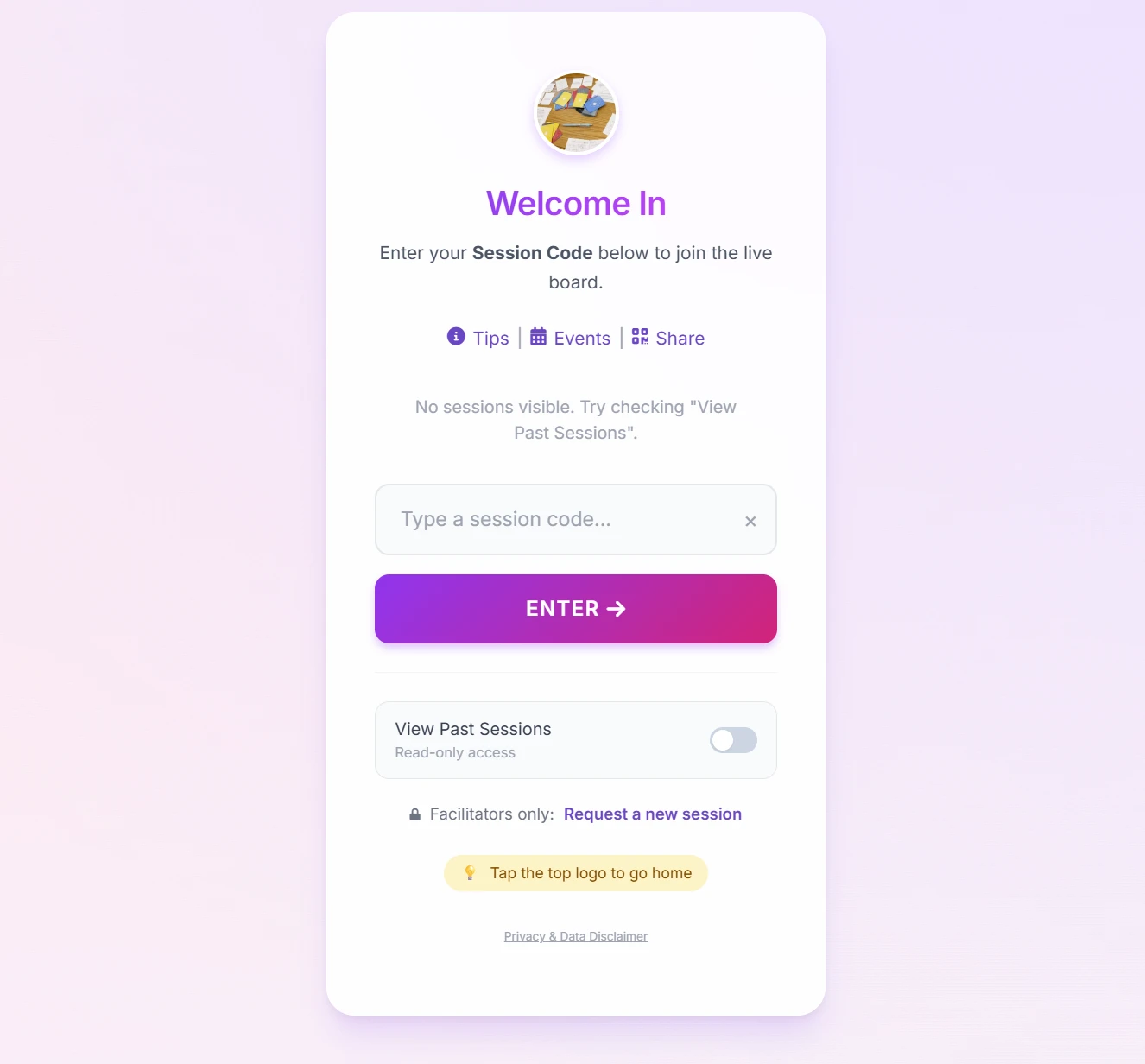
The Live Board is designed to be "walk-up simple." You do not need to create an account or login to use it.
Step 1: Enter the Session Code
When you arrive at the landing page, you will see a text box asking for a Session Code. This code is provided by your host (e.g., "132").
Step 2: Submit an Item
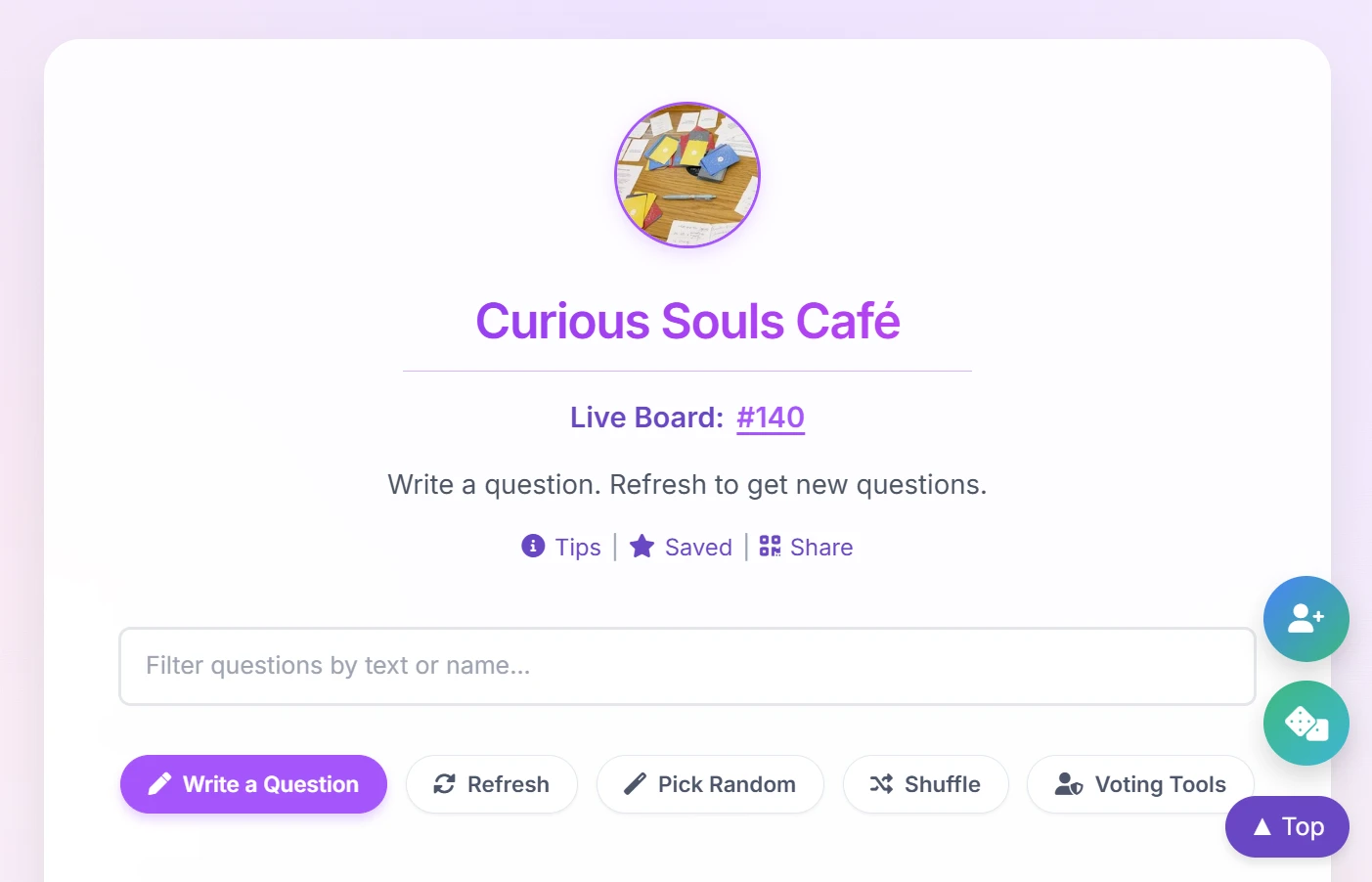
Once inside, you will see the "Write" button at the top. Tapping this opens a form where you can submit your own item to the board.
- It's Anonymous: Your name is not attached to the item unless you write it in the text body.
- Real-time (Usually): In most sessions, the board will automatically refresh to show your submission to everyone instantly. (Note: In Moderated sessions, submissions will appear as soon as they are approved).
3. Interaction Tools
The board isn't just for reading; it's an interactive tool to help you focus and learn.
Real-Time Stats & Sorting
At the top of the board, you will see a live counter tracking the total number of Items and Votes. Use the dropdown menu next to the search bar to switch between viewing 🔥 Most Voted (default) or ✨ Newest First to ensure late submissions get a fair chance to be seen.
Highlighting
Tap any card to Highlight it. This turns the card purple and reveals additional tools.
Focus Mode
For zero distractions, tap the Expand icon (top right of a selected card). This opens the item in a beautiful, full-screen Focus Mode—perfect for displaying on a projector or reading aloud.
External Tools (Search & Translate)
When a card is highlighted, floating buttons appear in the bottom right corner of your screen:
- Search / Translate: Opens a menu to instantly search the text on Google, Bing, DuckDuckGo or translate it using DeepL.
- Copy & Share: Quickly copies the text to your clipboard, or allows you to send a direct link to the card.
Saving Favorites & Notes
Found an item you love? Tap the Star icon on the card.
- This moves the item to your Saved Items list at the bottom of the page.
- The "Notes" toggle can be used to write private reflections or cues directly under a saved item. This feature is secured by a lock and requires a passcode to access.
4. Board Management Guide
Managing a session? The board has hidden tools that can be unlocked.
Creating a Session
Need a new session code for your event? On the main login screen of the Live Board, a hidden "Request a session" link can be found (located below the input box).
Toggle: Advanced Tools
Tap the "Unlock Tools" button (marked with a lock icon) in the control bar and enter the passcode. This unlocks advanced features and transforms the board:
- Participant View (Preview): Tap the eye icon next to the export button to temporarily hide the advanced controls and see the board exactly as the audience sees it.
- Mark as Discussed: Tap the green checkmark to gray out an item and drop it to the bottom of the board. This gets it out of the way without deleting its data!
- Delete & Undo: Tap the red "X" to remove a card. Don't worry if you misclick—a popup will appear at the bottom of your screen giving you 5 seconds to hit Undo.
- Moderate Submissions: For events using a Moderation queue, a Moderate button will appear at the top to jump straight to the approval dashboard.
Synchronized Focus Mode & Global Timer
If you open an item in Focus Mode while advanced tools are unlocked, you will see a purple Broadcast to Room button. Clicking this pushes the item to every participant's device instantly.
Exporting the Session Summary
When your event is over, click the
Export
button in the control bar. This instantly downloads a cleanly
formatted .txt file containing every item, category,
and its final vote count to keep for your records. (Items "Marked as
Discussed" will be clearly labeled!).
Managing Meetings & Events (The 2-Round Playbook)
Many gatherings transition from guided, preset topics (Round 1) to open, community-led contributions (Round 2). Here is how to use the board's tools to keep the workspace clean and prevent participants from getting confused by old items.
You can manually turn any submission into a Preset Prompt by separating your question and a number with a double slash (
//). For example, typing
1 // What inspires you? or
What inspires you? // 1 will both work perfectly
(spacing doesn't matter!). The board will remove the standard participant submission badge and apply a distinct dashed border with the exact number you assigned. This makes it visually obvious to all participants that this is a preset topic, not a crowd submission.
Tapping the green checkmark on a card marks it as discussed. This is a personal organizational tool just for you. It grays out the card and drops it to the absolute bottom of the management screen, keeping your workspace clean without deleting the item from the participants' view.
The Recommended Workflow:
- Round 1 (Preset Topics): Discussion topics can be submitted using numbers as categories so they appear globally as "Preset Items". The Highlight button can be used to display them on the big screen.
- The Clean-up: As Round 1 ends, the Mark as Discussed button can be clicked on the preset items. They will instantly sink to the bottom of the screen, creating a clean view to monitor incoming contributions.
- Round 2 (Open Contributions): Invite the audience to join the board and submit. Fresh submissions will automatically populate at the top of the screen, while old items safely rest out of the way at the bottom.
5. Dedicated TV / Presenter Mode
If you are projecting the board onto a big screen or sharing it on a Zoom webinar, you don't want the audience seeing the advanced controls, mouse movements, or the messy grid of questions.
Enter TV Mode. This creates a dual-screen experience where the backend is controlled from your tablet or laptop, and the audience sees a polished, distraction-free display.
How to use it:
-
Join the session normally on your personal device (e.g., enter
code
1234) and unlock the Advanced Tools. -
On the computer connected to the projector, enter the code with a
"tv_" prefix:
tv_1234.
The projector will now display a beautiful holding screen with a giant QR code for latecomers. The moment you tap "Broadcast to Room" on your personal device, the projector will gracefully crossfade into the massive item text!
Customizing the TV Display
Click the Settings button in the top right corner of the TV screen to customize the experience:
- Custom Backgrounds: Replace the default animated aurora with a solid brand color or custom CSS gradient.
- Distraction-Free Broadcasting: Toggle "Hide QR Code during Broadcasts" to completely clear the screen of joining instructions while an item is actively being discussed.
Ending the Session & Gathering Feedback
When your event concludes, click the red End Session button on the TV screen.
This triggers a synchronized "Graceful Exit" across the entire room. The TV will switch to a "Thank You" screen featuring a QR code to your feedback form. Simultaneously, every participant looking at the board on their mobile device will receive a pop-up modal thanking them for their time and providing a direct link to submit feedback.
6. Local Boards (Offline Mode)
Don't have internet access? Or perhaps you're hosting a small dinner party and just want to pass a tablet around? Local Boards allow you to create, play, and save item boards entirely on your own device without needing a live cloud connection.
Smart Imports & Clearing the Board
Local boards are incredibly powerful because they integrate with our Deck Builder and Live Cloud Sessions.
- Smart Importing: Our import tool is smart! If you export a Live Session Summary at the end of an event, you can import that exact same file into a Local Board later—and it will automatically remember and restore all the historical votes!
- Clear Board: Need to run back-to-back sessions on the same iPad? Unlock the Advanced Tools and click the red Clear Board button to wipe all items instantly without deleting the board itself.
Local Boards are saved in your browser's local storage. This means they are bound to the specific device and browser you created them on. If you clear your browser's cache or website data, your local boards will be deleted. Always use the "Export" button to back up boards you want to keep permanently!
7. Viewing Past Sessions
On the main joining screen, you will see a toggle for "View Past Sessions".
Enabling this reveals a list of previous event codes. You can tap any of these to enter "Read-Only Mode." This is a great way to browse hundreds of deep items/topics from our global community archives for inspiration.
8. Pro Tips & Troubleshooting
Connection Issues (Firewall)
If the page loads but says "Connection Issue" or stays stuck on "Loading...", you may be on a network that blocks Google Services (like some corporate offices).
- The Live Board relies on Google Sheets/Forms to function.
- Fix: Try switching to mobile data (4G/5G) or using another network.
Manual Refresh
"My submission isn't showing up!"
While the board updates automatically, spotty internet can sometimes cause delays. Tap the Refresh button in the control bar to force a quick update.
Ready to try it out? Launch the Live Board and enter a demo code (try looking for past sessions!) to see it in action.
Launch Live Board🛠️ Explore Other Tools
Enhance your gathering with our other facilitation tools.
Collect · Reflect
Your hub to curate questions, organize them with custom tags, and journal in Zen Mode, plus a professional Session Log for facilitators.
Curious Souls Café aims to foster a collaborative and reflective environment where dialogue and shared experience create meaning and build connections. The methods discussed here are flexible and can be adjusted to fit your group's needs.